Sell over chat, all in VieBoost
You sell on Zalo and Messenger, sometimes with multiple accounts on one phone. VieBoost brings it all into one screen: every customer message becomes a sale order + QR bill sent without leaving the chat; when the customer transfers money it auto-matches the right order; at period end the app builds accounting books per Circular 58 to export to Excel. All data stays on your device — nothing is stored on a server.
- Bring multiple Zalo + Messenger accounts together — many channels and accounts (even 2 Zalo on one phone) merged into one feed, replying from the right account.
- Create orders & send QR bills right from a customer message — long-press a Zalo / Messenger message to get a sale order + QR bill, without leaving the chat.
- Auto-reconcile money against your bank — read balance-change alerts & statements, auto-match the right order (even multiple transfers for one order). No manual hunting.
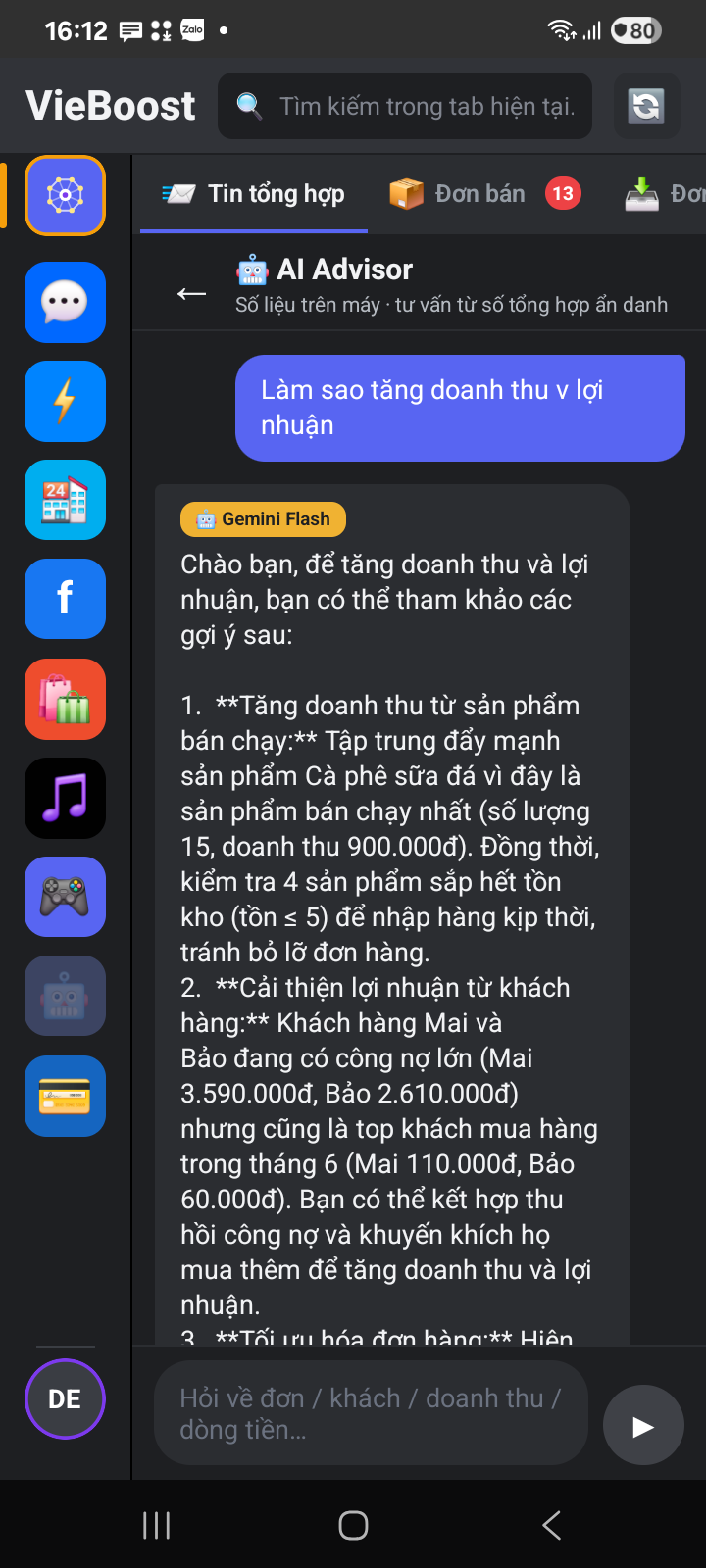
- Ask & get AI advice right on your device — ask “who still owes me?”, “profit this month?” → instant answers; ask “how do I grow revenue?” → the AI advises grounded in your real numbers. Data never leaves the device.
- Accounting books per Circular 58 — auto-build books from your sales & debt data → export to Excel to print / file.
1Install & sign in
- Download & install VieBoost on your Android phone.
- Enter your email and tap “Send verification code”.
- Open the email — tap the sign-in link, or enter the 6-digit OTP in the app.
- You’re in. Next time you open the app you won’t need to sign in again.
2Grant notification access
VieBoost needs Notification access to read Zalo / Messenger messages and bank balance-change alerts. This is the only required permission.
- Go to Account → Notification access.
- The app opens system Settings → toggle VieBoost on.
- Return to the app — the icon turns to granted ✓.
3Link Zalo / Messenger
Link once so VieBoost shows the correct account name (even if you have 2 Zalo accounts on one phone):
- Go to Account → Link channel accounts.
- Tap “🔗 Link” for each Zalo / Messenger account.
- Set a display name of your choice (e.g. “Main shop”) to tell them apart.
4Main screen — multi-channel, multi-account
The Unified inbox tab is the hub: it gathers all Zalo + Messenger messages — from every account you’ve linked — in one place, newest on top. No more jumping between apps or repeatedly switching logins.
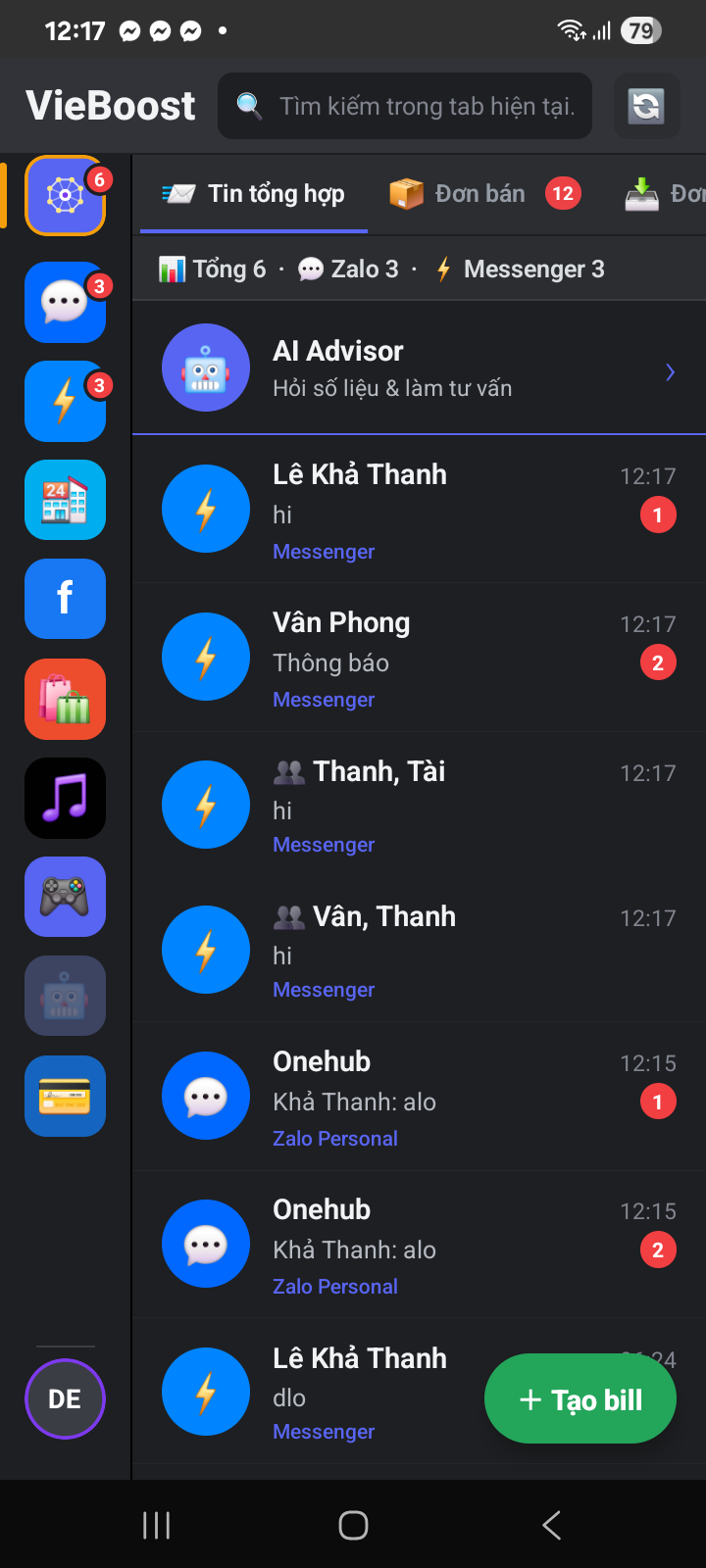
- 📥 The channel rail on the left switches quickly between channels / accounts — a red badge shows unread counts.
- 🏷️ Each message knows which account it came from; your reply goes from that exact account (even 2 Zalo main + Dual on one phone).
- ↩️ Swipe left a row to hide a conversation you don’t need — it reappears when the customer messages again.
5Close the sale right inside the chat
😓 Selling over chat has always been painful: open a separate sales app, retype the order, copy your bank number to the customer, then hunt down who paid, and write it all in a ledger at night. VieBoost folds it all into one long-press on the customer’s message — order, QR bill, payment, bookkeeping, without leaving the Zalo / Messenger chat.
- Long-press the customer’s message → the action menu pops up right in the chat (image below).
- Choose “📦 Shipped + Bill” — the order form opens, pre-filled from the customer’s message.
- Quickly check products (name · price · qty) — the total adds up automatically, add an item in one tap.
- Tap Send → the QR bill lands straight in the customer’s chat. They scan to pay the exact amount; the money is auto-reconciled and booked (see sections 6–7). The order also files itself in the Sales tab.


Sell & collect in one step
Customer pays right away? Long-press the message → “💰 Collected” to create the order and record the payment at once — pick the method (Cash · Bank transfer) for the right fund.
6Send QR bills
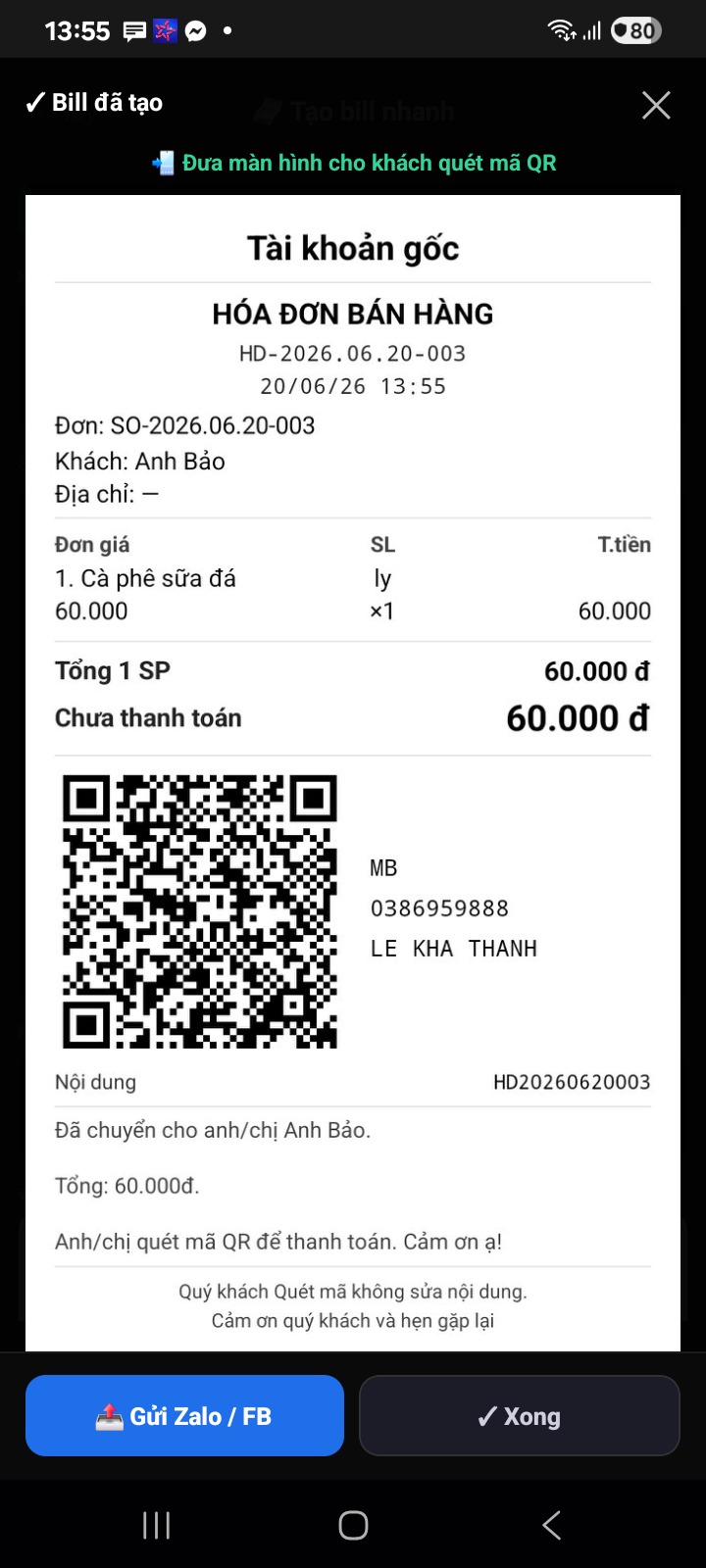
VieBoost creates a store-style bill with a bank QR code so customers can scan and transfer the exact amount and reference.
- Go to Account → Bank accounts, add the receiving account number (set one as default).
- When creating a bill, review the details → tap Send.
- VieBoost opens the customer’s Zalo / Messenger → pick the bill image from the “Clipboard” tray and send.
7Auto money reconciliation
VieBoost’s strongest feature — works for both money in (customer transfers) and money out (paying suppliers):
- Your bank app pushes a balance-change alert (or you import a statement).
- VieBoost reads the amount + transfer reference (invoice code).
- It finds the right order → marks it ✅ Reconciled. No manual hunting.
8Purchases & payments
Manage stock-in like sales: create a purchase order with a supplier, track a 5-step lifecycle, and auto-reconcile payments when you transfer money to the supplier. Open the Purchases tab — the summary lane at the top gives an instant overview plus each order’s status.

Create a purchase order
- In the Purchases tab, tap “+ New order” (bottom right).
- Enter the supplier name (e.g. Da Lat Wholesale) — phone optional.
- Type the product name: if it’s already in stock, VieBoost suggests it — tap to pick (for correct COGS).
- Fill in quantity and unit price — the line total adds up. For more items tap “+ Add product”.
- Tap “💾 Save purchase order” → it appears in the list with status ⏳ To order.

Track the purchase lifecycle
Open a purchase order to change its status — one tap per step:
- 📦 Ordered → 📥 Received: goods enter stock, updating inventory & weighted-average COGS, and recording Payable to the supplier.
- 💰 Paid: record the payment to the supplier → deduct from the Cash book and close the Payable.
Goods first, invoice later
Received goods but no price invoice yet from the supplier? VieBoost still lets you record the purchase with a line that has no unit price (price = 0 · field shows “0 = no invoice”). On receipt, stock updates with a provisional cost so you’re not blocked from selling.
- Create the purchase order, leave unit price = 0 for items with no invoice → Save → receive as usual.
- Open that order: the “GOODS IN WITHOUT PRICE” section lists lines using a provisional cost.
- When the supplier delivers the invoice, tap “🧾 Enter real-price invoice” → enter the real unit price / unit (leave a line blank to keep it pending).
- VieBoost re-matches: closes the provisional amount, records the correct payable per the invoice, and updates inventory COGS to the real figures.
The cash book never goes negative
When you tap “Paid” but the fund is insufficient, VieBoost blocks it and states the remaining balance — preventing a negative-fund entry (accounting error).
9Products, COGS & inventory
VieBoost tracks inventory and COGS by accounting standards (IAS 2 — weighted average) so P&L reflects real profit.
Product catalog & BOM
- Go to Product catalog, add finished goods (e.g. Porridge) and materials (e.g. Rice).
- For processed goods, declare the material bill of materials (BOM) — e.g. how many grams of rice per bowl of porridge.
- Also set a % processing cost (gas / electricity / labor), default 5% of material cost. VieBoost computes the standard COGS.
Stock ledger In – Out – Balance
Every purchase order stocks in, every sale stocks out — automatically. Go to Reports → Inventory to view.

Production slip (in-house processing)
Make finished goods from materials (mixing, packing…). Go to Account → Finance & accounting → Production slip:
- Pick the finished good (with a BOM declared in Product catalog).
- Enter the production quantity → tap Save production.
- VieBoost auto deducts material stock per the BOM and stocks in the finished good — cost rolls by weighted average.

Stocktake
Periodically reconcile actual stock with the books. Go to Account → Finance & accounting → Stocktake:
- Pick a group (Materials · Finished goods · Merchandise) → see the book quantity per item.
- Enter the actual count in the “count” field — the app shows the shortage / surplus instantly.
- Tap Save stocktake: a shortage posts to COGS, a surplus increases stock — inventory & P&L self-correct.

Processing cost
The standard processing cost (gas, electricity, labor by formula) is declared in the BOM in the Product catalog and added to COGS on every sale/production.
- The P&L report shows a “Processing cost of goods sold” line automatically — separate from materials.
- The actual variance vs standard (gas/electricity/labor fluctuating each period) appears on the “Processing variance” line — see exactly where COGS deviates.
- Cost rolls by weighted average, so P&L always reflects the true composition.
Estimated COGS & later true-up
Sell a product without a declared COGS (not yet linked to stock)? VieBoost still records the order — it estimates a provisional COGS from the selling price and flags it ⚠ in the Copa report so you don’t forget.
- Go to Product catalog to declare COGS / link a stock product for that item.
- VieBoost recomputes (true-up) the COGS of already-sold orders → the ⚠ flag disappears and P&L matches the real figures.
10Cash flow · P&L · Balance sheet
VieBoost follows accounting standards, clearly separating actual cash in/out, accrued revenue and standard COGS. The Reports tab has a quick strip: 📊 P&L · 📈 Copa · 📦 Inventory · 📒 Journal · ⚖️ Trial balance · 📋 Financials — slide horizontally to switch.
Cash flow (actual cash in/out)

Accrued P&L + COGS composition
The P&L report splits COGS into Standard and Variance (actual vs standard) — see exactly where profit/loss comes from.

Gross profit by item / order (Copa)
The Copa tab breaks down gross profit per item and per order — see which product earns the most. Items without a declared COGS are flagged ⚠ (using estimated COGS) so you can complete them for accuracy.

Balance sheet · Financials (B01-DNSN)
The Financials tab builds the B01 statement of financial position per the TT58 template — Assets = Equity + Liabilities, always self-balancing (0đ difference). Cash · Receivables (incl. supplier advances) · Inventory · Other assets ↔ Liabilities · Owner’s equity. Every line derives from documents, no manual entry.

Cash book
The Cash book tab tracks cash · bank balances per receipt/payment voucher — know exactly how much money is in each fund.

Receipt / payment vouchers (other in · other out)
Amounts not tied to an order (petty income, utilities…) are recorded via “+ Receipt/Payment” in the Cash book tab (Cash fund):
- Choose In or Out.
- Enter the amount and pick a method (Cash · Bank transfer · COD · Other).
- Link an order: choose None for petty amounts, or attach to a sale / purchase order to reconcile debt.
- Tap Save → the fund updates immediately.
Bank credit / debit advice · supplier debt
The Bank fund uses the “+ Credit/Debit advice” button for transfers — a TRANSACTION CODE is required to match statements:
- Credit advice (in) — customer transfer arrives: link a sale order to reconcile collection, or record as other income.
- Debit advice (out) — your transfer out: link a received purchase order → pay the supplier (close the payable); link an unreceived purchase order → record an advance (a receivable from the supplier).

Document journal (double-entry)
Go to Reports → Journal to see every transaction as debit/credit entries — sales, purchases, receipts, payments, processing, stocktakes, taxes… each with its own line. This is the source of truth; every report above derives from it.

Trial balance
The ⚖️ Trial balance tab builds a trial balance from the journal itself: one line per account with Opening · Movement · Closing (debit / credit). It’s the double-entry check — total debit movement always = credit movement.

- 📌 The Account column is frozen, number columns scroll horizontally — every figure stays readable.
- ✓ The bottom row reads “Balanced · total debit movement = credit” — any imbalance instantly flags a bad document.
- 📤 Filter by year; along with the Journal & Financials, it exports to Excel on the Pro plan (section 11).
11Accounting books TT58 (export to Excel)
VieBoost auto-builds accounting books per Circular 58/2026/TT-BTC from your own sales & debt data, then exports an Excel (.xlsx) file to print / file. You only pick a tax method once per year.
- Go to Account → Finance & accounting → Book setup (TT58).
- Choose the VAT and CIT tax methods — the app derives the applicable Article & required books.
- Set revenue groups by tax % rate (default group “General”; add groups for multiple business lines).
- Pick the books to export → Export → the
.xlsxfile appears to share / save.


- 📒 S1 — Revenue book: groups revenue + computes VAT / CIT payable.
- 📒 S4a — Debt detail book: receivables / payables per customer & supplier (opening → movement → closing).
- 🔒 The file is created on your device then shared — no data is sent to a server.
12Ask AI
Don’t feel like reading reports? Just ask in plain language — the AI answers from real data on your device. VieBoost AI runs in 2 layers:
- Layer 1 — Instant Q&A (53 built-in skills): common questions (revenue · debt · inventory · P&L · cash flow · accounting books…) are answered to the exact đồng right on the device — no internet, nothing sent anywhere.
- Layer 2 — Advisor (AI reasoning): free-form / advisory questions (“how do I grow revenue?”) → the AI gives advice grounded in your real numbers. Only the question + an anonymized summary (names · phones · bank accounts stripped) is sent — your sales data never leaves the device.
Example questions answered instantly (Layer 1):
- “Revenue today?”
- “Top 5 customers who still owe”
- “Which orders are unpaid?”
- “Profit this month?”
- “What’s the inventory value?”
- “Which products are running low?”
- “Copa — gross profit by item”
- “Ledger for account 1111”
13Backup & move phones
Because data lives on the device, you back up manually when changing phones:
- Go to Account → Data → Backup. Set a password.
- The app creates an encrypted
.ohbackupfile → send it via Zalo / Drive / USB. - New phone: install VieBoost → Restore from file → enter the password → your data is back.
14Plans & channels
Start free, upgrade when you need more channels, more accounts or deeper reports. Every plan includes selling · QR bills · reconciliation · inventory · reports · AI.
- 2 channels
- 1 acc / channel
- 10 QR bills / day
- Full sale / purchase orders
- Weekly report
- Monthly report
- 2 channels
- 1 acc / channel
- Unlimited QR bills / day
- Full sale / purchase orders
- Weekly report
- Monthly report
- 2 channels
- 2 acc / channel
- Unlimited QR bills / day
- Full sale / purchase orders
- Weekly report
- Monthly report
- 4 channels
- 2 acc / channel
- Unlimited QR bills / day
- Full sale / purchase orders
- Weekly report
- Monthly report
- Go to Account → Upgrade plan.
- Pick a plan + cycle (monthly / yearly — yearly saves 10%).
- Pay securely by card. The upgrade takes effect immediately.
Gift code / voucher
Have a gift code or voucher? Go to Account → 🎁 Gift code, enter the code and tap “Activate code” — the plan is unlocked / upgraded instantly, no payment needed.

15Security & privacy
- 🔒 Data stays on your device — messages, orders, contacts are not stored on a server.
- 🔒 VieBoost only reads notifications to display them — it doesn’t edit or distribute them.
- 🔒 Backups are AES-256 encrypted with your own password.
- 🔒 Compliant with Decree 13/2023 on personal data protection.
16FAQ
Does VieBoost secretly read my messages?
No. VieBoost only reads notifications right on your device to show them back to you for management. Content is not sent out and never goes to a server.
Will my Zalo / Facebook account be locked?
No. VieBoost doesn’t interfere with Zalo/Facebook, doesn’t log in on your behalf, and only reads Android notifications — like a smartwatch showing messages.
The customer transferred money but it didn’t auto-match an order?
The customer may have written a free-form transfer reference. Go to Cash flow → manual reconcile and tap the right order. Remind customers to keep the reference on the QR bill so it auto-matches.
I’m not getting balance-change alerts?
In your bank app, enable “Show balance-change alerts in the status bar”. Each bank places this setting differently.
Why does the P&L differ from actual cash in?
That’s the accounting standard: P&L is based on accrued revenue & COGS (delivered, even if not yet collected), while Cash flow counts only actual money in/out. View both for the full picture.
Can the cash book go negative?
No. When a fund is insufficient to pay, VieBoost blocks it (no payment voucher that makes the fund negative). The unpaid amount stays under Payable (debt) — pay later when you have cash and it self-matches.
Will I lose data when changing phones?
No, if you back up first (section 13). Always back up before switching phones.
Does it work on iPhone?
VieBoost is currently optimized for Android. An iPhone version is in development.